Business partners' forms
If your organization works with business partners and you take part in their processes, the Forms section shows not only your company's forms but your partners' forms as well. When you have many partners, finding the right form can be tricky, especially since forms from different companies may have the same name, such as "Payment approval".
To avoid mistakes and make sure you don't send a request with one company's data to another, use the business partner filter or search for forms by partner name. Both work in the Forms section and in the new task window.
Note: the business partner filter appears only if you have access to at least one form owned by another organization. If you only work with your own company's forms, you won't see the filter.
Filtering forms by business partner
- Open the Forms section in the left menu.
- Above the list of forms, click the filter. By default, it's set to All forms.
- Choose one of the options:
- All forms — all forms available to you, both your company's and your business partners';
- your organization's name — only your company's forms;
- a business partner's name — only that partner's forms.
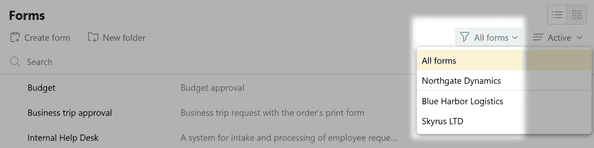
The list includes only business partners that have at least one form available to you. Partners are sorted alphabetically. If there are more than five partners, a search box appears at the top of the list: start typing a company name, and the list narrows down to the matching options. Search is not case-sensitive.
The selected partner's name is shown on the filter button, so you always know whose forms you're looking at. To see all forms again, choose All forms.
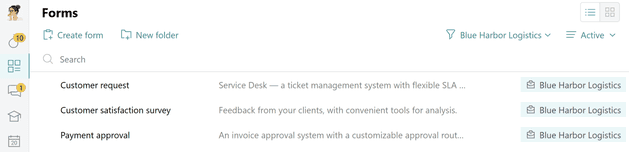
How the filter works with search and folders
- You can combine the business partner filter with the form name search and the Active filter. The list shows only forms that match all conditions at once.
- If you change or reset the filter, the search text stays. Likewise, if you clear the search, the selected partner stays.
- Folders that contain no matching forms are hidden. If a matching form is in a subfolder, its parent folders stay in the list so you can get to it. Expanded folders stay expanded.
Note: the filter only narrows down the list. It doesn't give you access to forms you can't already access.
Searching forms by business partner name
The search in the Forms section looks for matches not only in form names but also in the names of the business partners that own the forms. Type a partner's name, or part of it, in the search box, and the list will show all forms of that company that are available to you.
If your search text matches both a form name and a partner name, the form appears in the results only once.
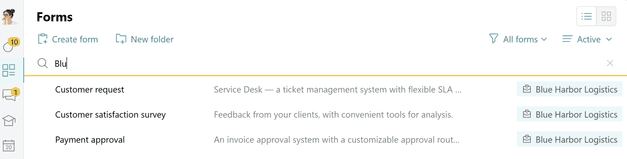
Pyrus Tip: business partners' forms are marked with a tag showing the company name. Your own organization's forms have no tag.
Choosing a partner's form when creating a task
The business partner filter and search are also available where you choose a form for a new task.
- Click New task in the left menu.
- In the form selection window, click the business partner filter and choose your organization or the partner you need. Alternatively, type the partner's name in the search box.
- Choose a form from the list, fill it out, and click Send.

Note: the business partner filter isn't available in the Pyrus mobile app yet.
You may also find these useful
- Working with business partners — how to connect with another organization and give it access to your forms.
- Business partners' permissions — what your partner's employees can see and do in your forms.
- How to start — how forms work and how to create a task from a form.