BPMN workflow in Pyrus
A BPMN diagram (Business Process Model and Notation — an international notation for describing business processes) is a convenient way to set up routing for a form. You draw the process as a diagram of blocks and arrows, so you can see at a glance who works on the task and in what order, where the process branches, and where it runs in parallel.
What makes a BPMN diagram stand out?
- Clarity. The whole process fits on a single diagram — you don't have to keep a long list of approval steps in your head.
- Branching. You can set conditional transitions: depending on form field values or the decision a participant made, the task follows different branches.
- Parallel work. Several actions can run at the same time, and the process moves on once all parallel branches are complete.
- No limit on approval steps. A BPMN diagram can contain any number of blocks.
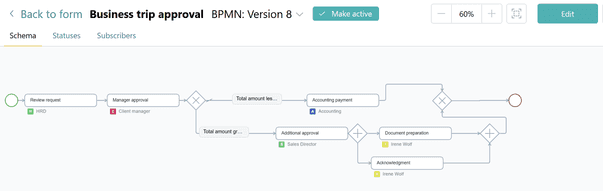
Tip: BPMN doesn't replace linear (step-based) routing — Pyrus supports both. But a form can use only one of them: either linear routing or a BPMN diagram.
How it looks in a task
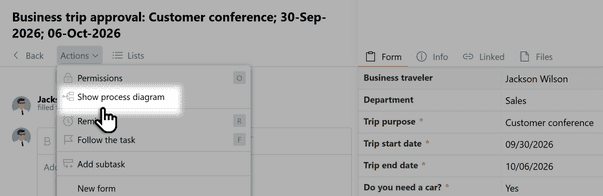
When a form uses a BPMN diagram, the Show process diagram button appears in the Actions section of the top panel above the form fields.
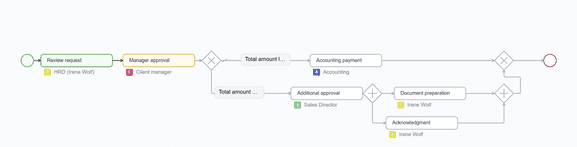
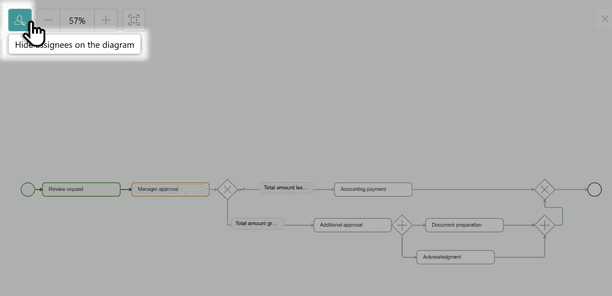
Click it to see where the process is right now: in the diagram that opens, completed steps are highlighted in green and steps still waiting to be done — in yellow.
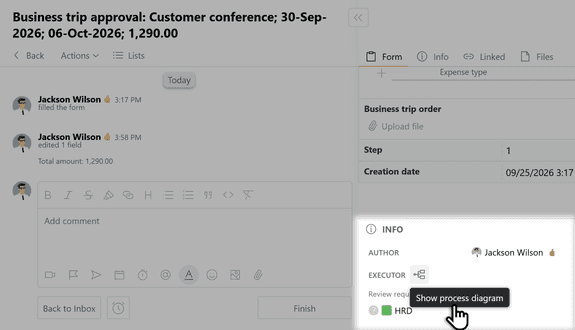
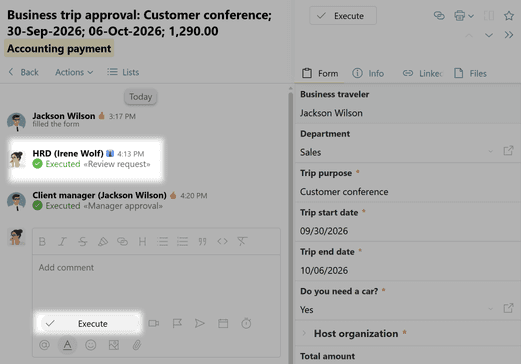
The task's BPMN diagram is also available in the Executor block.
If needed, you can hide executors on the diagram. To do this, click the Hide assignees on the diagram icon in the top panel.
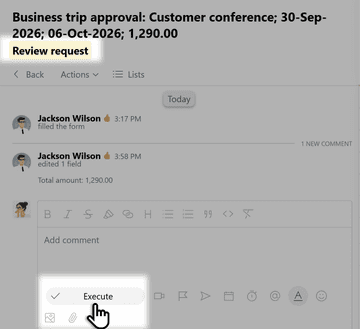
The task arrives in the executor's Inbox. They open it and click Execute if they have no objections to the action. The name of the action is highlighted and shown at the top of the task.
If the executor needs to perform several actions at once (in parallel branches), there will be one task in their Inbox with several active actions inside it, each with its own button.
Setting up a BPMN diagram
A BPMN diagram is built in the Routing section of the form settings. Each form can have one diagram. The finished diagram describes the task's entire path, from start to finish.
How to enable a BPMN diagram
For a new form, you choose the routing type when you create it.

For an existing form, open the form settings, go to Worlflow, and click BPMN in the top panel.

Note: If this form previously used linear routing, the route is not transferred to the BPMN diagram automatically — you'll need to build the diagram yourself. Tasks that have already been created will keep following the routing they were created with.

How a diagram is built
A diagram consists of action blocks connected by flows (arrows). Every diagram begins with a start event. To build a route, add blocks to the canvas and connect them with flows to set the direction the task moves in.
Diagram blocks
Start — the point where the process begins. A diagram always has exactly one start event, and it has no participants.
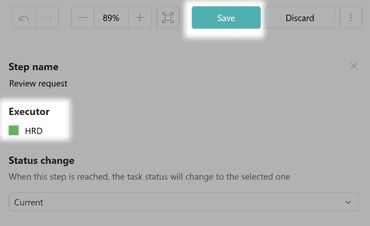
Action (rectangle) — work performed by an executor. Each action has a single executor: a specific user or a role. When the task reaches the block, it goes to the executor's Inbox, and they confirm the action by clicking Execute. The block can have only one incoming and one outgoing flow. After adding the block to the diagram, click it and assign an executor in the panel that opens on the right.
XOR gateway (diamond with a cross) — a choice between paths: the task follows only one of the flows, depending on which condition is met. Transition conditions are set on the flows themselves and can check form field values and the decision the executor made when completing the previous action. To set a condition, click the arrow and configure it in the panel that opens on the right.
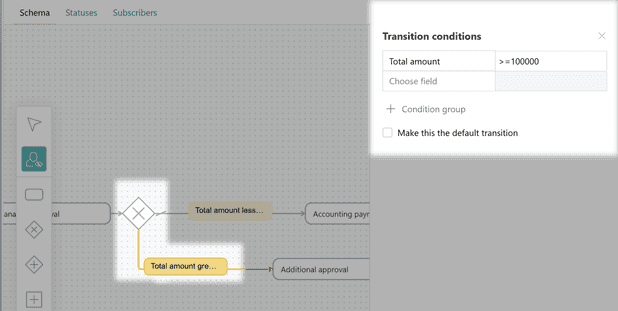
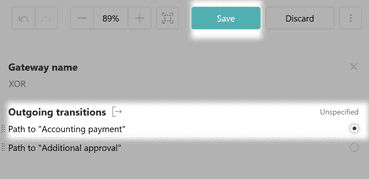
One of the outgoing flows is set as the default transition: the task follows it if none of the conditions are met. The same gateway is also used to merge several branches back into one.
AND gateway (diamond with a plus) — parallel branching: the task follows all outgoing flows at once, with no conditions. Every split AND gateway must have its own matching merge gateway, which waits for all parallel branches to complete and only then continues the process.
Timer (circle with a timer icon) — lets you automate waiting in a process and set delayed or conditional transitions automatically. There are two types of timers:
Timer (waiting for a period of time): the process pauses for a set interval (minutes, hours, days) and then continues along the diagram on its own. For example, an employee must approve a request within 24 hours. You can set a 24-hour timer: if the request isn't approved in time, the task automatically goes to a higher-level manager.
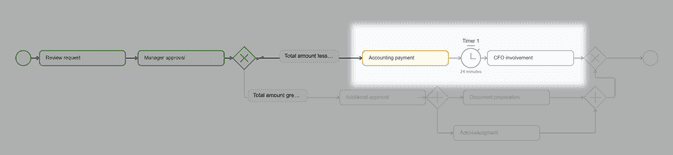
Awaiting status: the process waits until the task reaches a certain status and only then moves on. For example, a contract payment process can't continue until the Document review subtask reaches the Verified status.
Subprocess (square with a plus) — a subtask based on a form that is automatically created inside the main task at a specific node of the BPMN diagram.
Finish — the point where the route ends. A diagram can have several finish blocks. When a task reaches a finish block, the task is closed — unless the block settings say to keep it open.
Flow (arrow) — a directed connection between blocks that sets the direction the task can move in along the diagram.
Tip: To delete a diagram element you no longer need, click it and press Delete or Backspace.
Diagram rules
A diagram can be saved only if it follows these rules:
exactly one start event and at least one finish event;
every block except Start has incoming flows, and every block except Finish has outgoing flows;
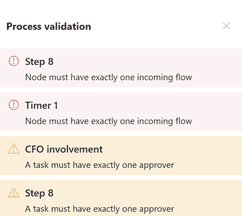
Action, Timer, and Subprocess blocks have no more than one incoming flow and exactly one outgoing flow;
a split XOR gateway must have a default transition;
every split AND and XOR gateway has a matching merge gateway, and blocks inside parallel branches are isolated: flows do not cross branch boundaries.
If a diagram breaks these rules, Pyrus highlights the problem areas and won't let you save the diagram until they're fixed.
Tip: For the diagram to start working, don't forget to select BPMN in the Routing list in the top panel after you save it. 