Request statuses
A request may be in different states even at the same step. To track them, you can use statuses, for example, in sales or HR. Let's say a company's sales process runs on a Deal form. When a manager reaches a potential customer, they create a new deal request, set the Lead status right away, and start working on it.
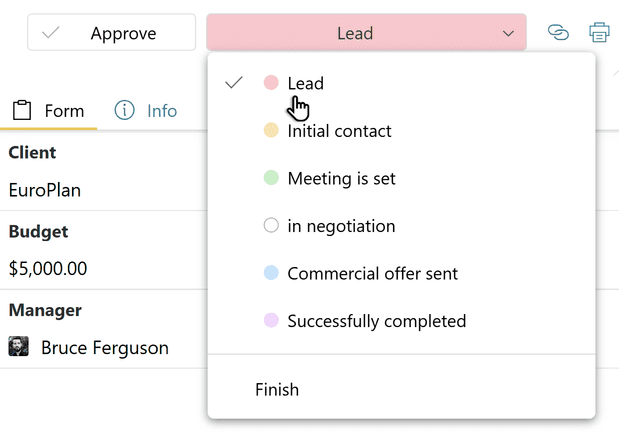
After the first contact with the lead, the manager sets a new status that reflects the current state of the deal, and so on until the process is completed with either a successful sale or the customer's refusal to buy.
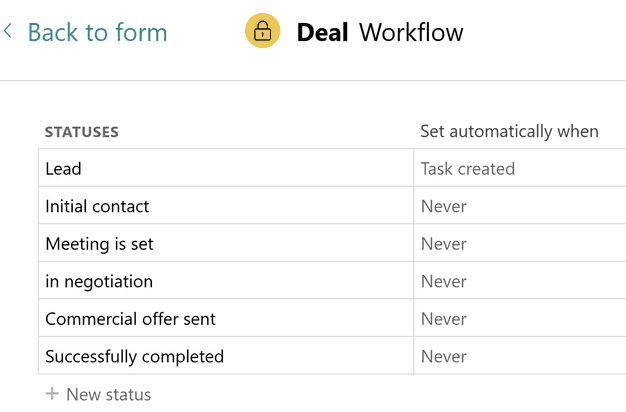
You can set statuses in the request workflow editor. Go to Configure in the form template and click Add status.
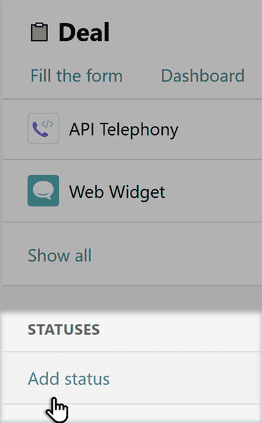
The Workflow editor opens. Here you can edit the names of statuses, delete them, or add new ones.
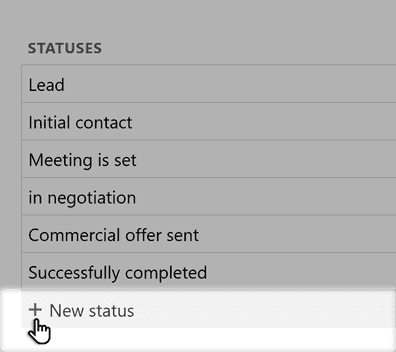
Tip: you can also add a new status on the kanban board. 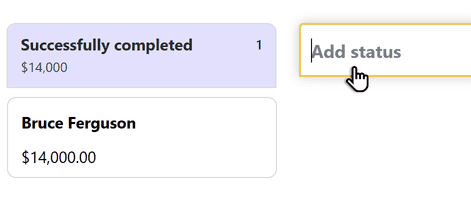
Notifying a client when a request status changes
In the Statuses section of the workflow settings, you can set a rule so that when a request status changes, for example, to In progress, the client receives an email saying that their issue is already being handled. This makes processing tickets more convenient and stress-free both for the client and for the support team.
Tip: to set the text of the message the client receives when their ticket status changes, first add it to Canned responses.
Automatic status changes
In the workflow editor, you can set a status to be assigned automatically when a certain event occurs.
This makes it easy to track the stages of requests by status on the kanban board.
You can set up automatic status changes in the following cases:
When a new request is created: for example, when a new sales opportunity appears, the request automatically gets the Lead status.
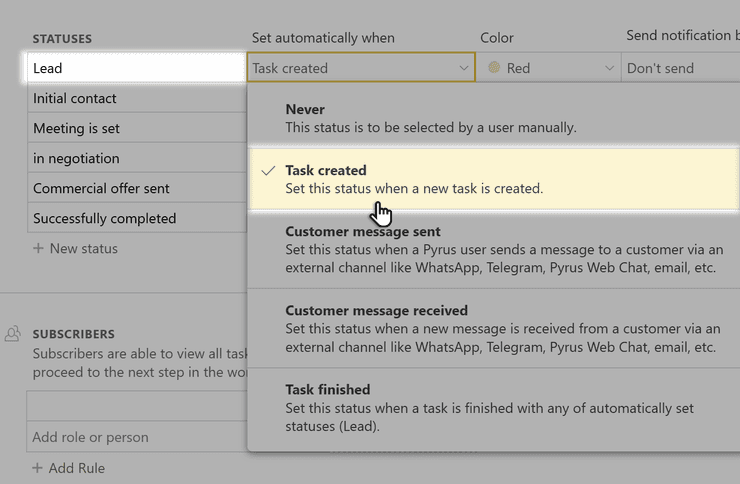
When a request moves to a certain step: for example, if you handle recruitment in Pyrus, you can have the candidate's status change automatically — from the first contact to an offer or a rejection.
When a message is sent to a client and when a reply is received from them via messengers, chats, or email: this helps optimize customer support. For example, when a message is sent to a client, their ticket automatically gets the Waiting status, and the operator can work on other requests until the status automatically changes to Response received.
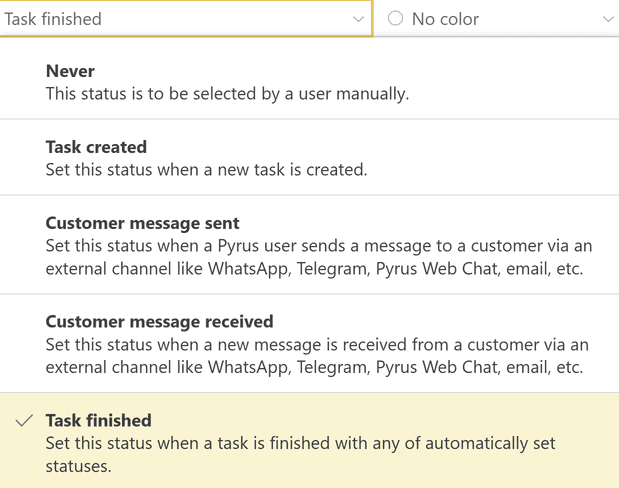
When a task is finished manually: sometimes an employee closes a request manually at the moment when its status is supposed to change automatically under the conditions above.
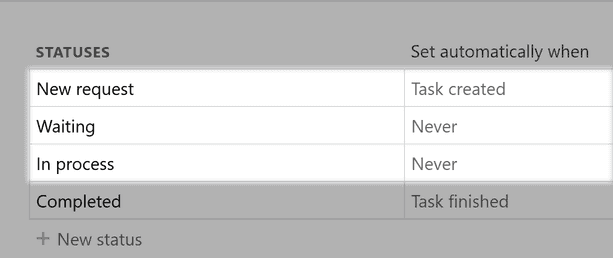
You can set a rule so that in this case the request status immediately changes to Completed or Done.
Tip: in Pyrus, you can set up an automatic notification to a client or candidate when a request status changes.
Kanban board: cards by request status
The kanban board is a convenient way to track the stages of requests by status.
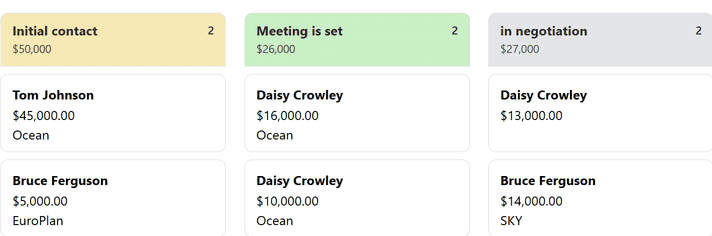
Kanban cards correspond to the stages of work. They are arranged from left to right, from the initial stage (a promising potential customer appears) to the final one (a product or service is sold to the customer).
The board gives an instant visual overview of what stage each deal is at: how many new leads are in progress, who you are negotiating with, who has already received a commercial offer, who has signed a contract, and who has already paid.
How to use the kanban board
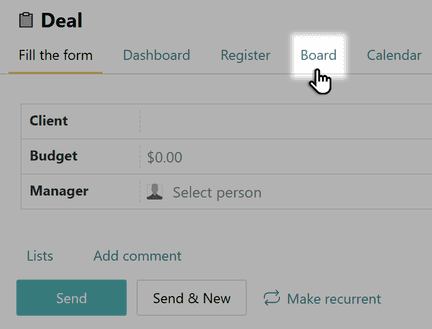
To open the kanban board by statuses, open the form you need and click Board in the top panel.
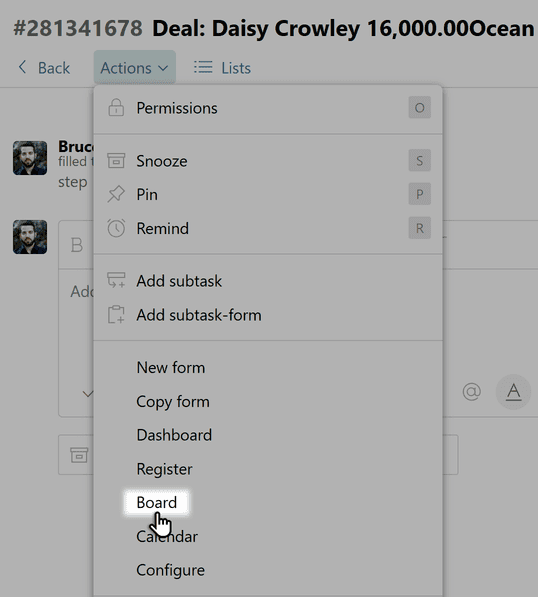
You can also open the kanban board from a request: open it and select Board in the Actions menu.
If no status is set in a request, it automatically goes to the Not selected column.
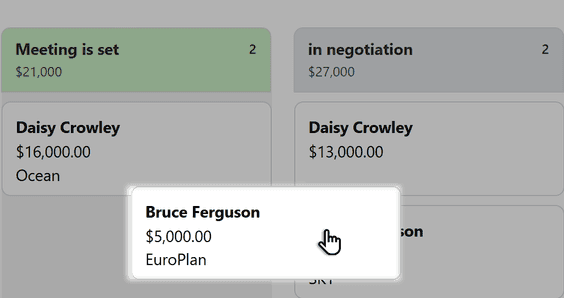
You can set or change a request status right on the board. Just drag the request to the column you need.
You can also create a request with a status already set. To do this, hover over the header of the column you need and click the + icon.
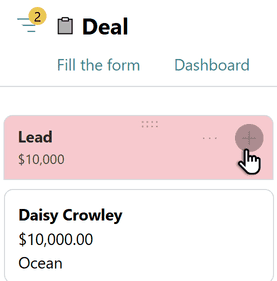
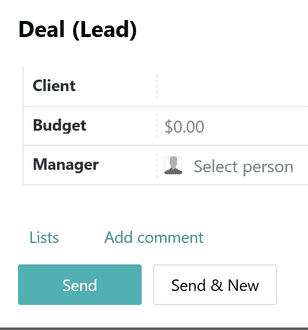
An empty request opens with the status already set.
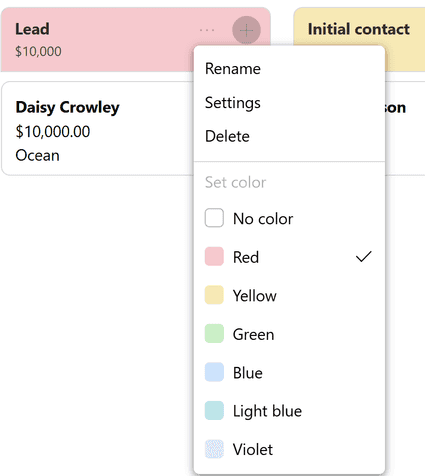
To rename a status, delete it, or change the column color, click the three dots in the column header and select the option you need.
To make the kanban board more informative, you can display additional information on each card, for example, the deal amount and the company name.
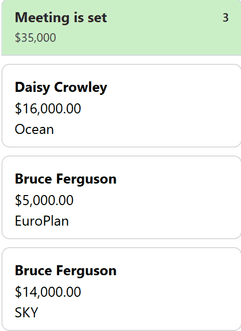
To do this, the values of these form fields need to be displayed in the request title.
Go to the form template and set this rule in the settings of the fields you need. Click Save.
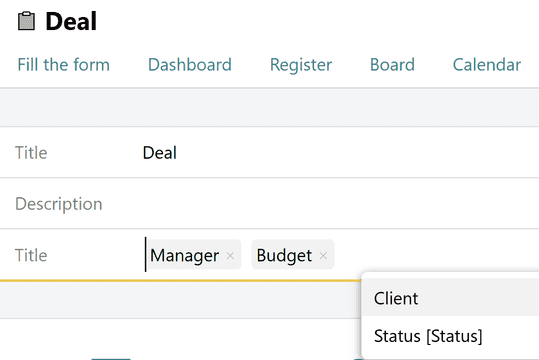
Tip: if your form has several Money fields, the kanban board shows the one used to build the report in the Dashboard.
Filtering cards by criteria
You can filter cards by many criteria: for example, show only open (active) tasks, tasks where a certain employee is the assignee, and so on.
You can also filter cards by form fields, for example, show only requests where the budget is already set. To do this, click the search field, select the Budget field in the drop-down menu, and then select Is filled.
Tip: if you go from the Board to the form Register, the filter settings you set on the kanban board are kept there too.
Sorting cards by field value
You can arrange the cards on the kanban board by the value of a form field. Click Sort above the board, select a field, and choose the order: ascending or descending.
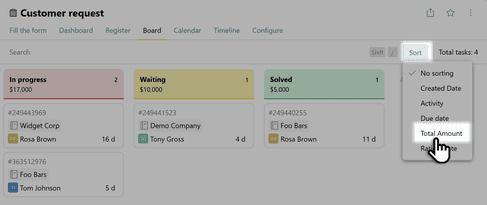
The sorting applies to the whole board and works the same way in every column. The total number of sorted tasks is shown in the header.
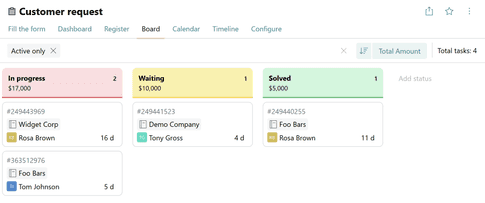
You can sort cards by Due Date, Number, Money, Date, and Created Date fields.
For Number and Money fields, cards are arranged in ascending order, from the smallest value to the largest, or in descending order, from the largest value to the smallest.
For example, on a sales department board, each card is a deal, and the contract amount is stored in the Budget field (a Money field). Sort the board by this field in descending order, and the biggest deals will be at the top of each column. This way, the manager can immediately see which clients need attention first.
For Date and Created Date fields, cards are arranged in ascending order, from the earliest date to the latest, or in descending order, from the latest date to the earliest.
For example, on a recruitment board, each card is a candidate, and the date of the last email or call is stored in the Awaiting response field (a Date field). Sort the board by this field in ascending order, and the candidates who have not been contacted for the longest time will be at the top of each column. This way, the recruiter can immediately see whom to write to first, so that no one is left without a reply or loses interest.
For Due Date fields, cards can be arranged in ascending order, from the nearest due date to the latest, or in descending order, from the latest to the nearest. In ascending order, overdue tasks are shown first, then tasks with the nearest due date, then those with later due dates; cards without a due date are shown at the end.
If the field used for sorting is empty in a card, the card is shown at the bottom of its column. If several cards have the same field value, they keep their previous order.
Also read about kanban boards for task lists.