Assigning a deputy
Why you need a deputy
Substitution is a convenient Pyrus tool that provides for continuity of workflow, helps avoid emergencies, and all but makes task delays a thing of the past.
When an employee goes on vacation or sick leave, it’s important for their work tasks to continue being completed on time. That doesn’t mean they have to finish them all in advance, however. All they have to do is assign themselves a deputy.
Please note: the substitution feature can only be configured for form-based tasks.
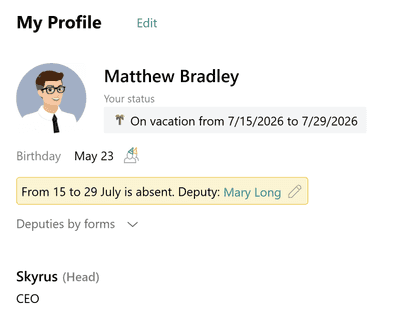
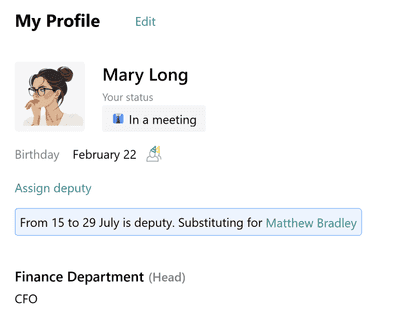
Your co-workers need to know who to reach out to when you’re away. Information about your deputy is displayed on your profile, and in the Organization structure.
How it works
Automatically added to tasks. If you assign a Default Deputy, they’ll automatically be added to all your tasks whenever there are any changes in them - for example, when someone comments in the task, or when a field is updated.
Your tasks go to your deputy. Your tasks will appear in your deputy’s Inbox. The task routing will take effect after each change in the task.
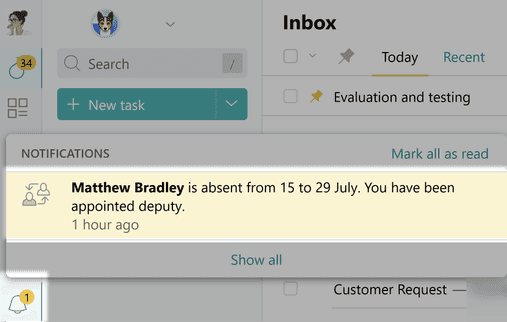
Notification. Your deputy receives a notification immediately after being assigned.
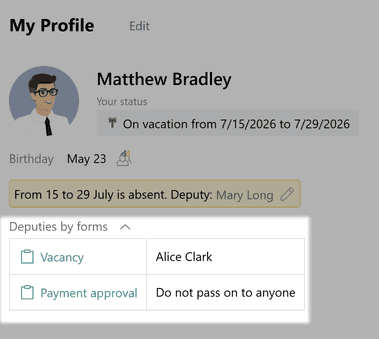
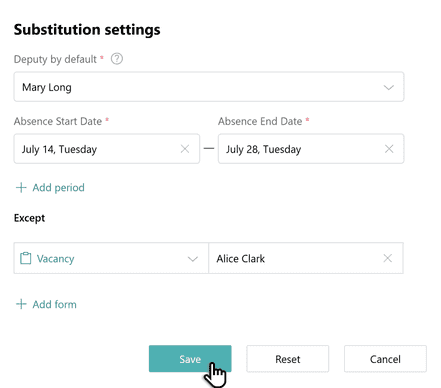
Choosing a deputy. You’ll usually choose a Default Deputy from your own department. But some processes cannot be handed over to a co-worker from your own team, and require a specialist with particular qualifications. You can assign some of your form tasks to another employee by specifying them in the Substitution settings. That information will also be displayed on your profile.
Confidentiality. Employees who don’t have permissions for this form won’t see that you’ve delegated it. If form tasks contain confidential information, you can configure it so none of your co-workers see it.
Filtering of tasks for your deputy. In the All tasks tab in the upper panel on the right, your deputy can filter by tasks received in your absence.
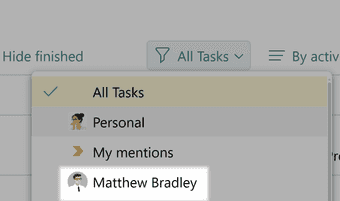
Your deputy’s deputy. If your deputy can’t perform your tasks for whatever reason, they can assign a replacement in their profile.
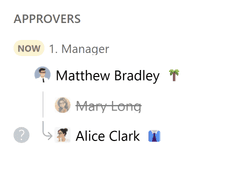
Example. Matthew is a step Approver for partner conference planning. He goes on vacation, and assigns Mary to be his deputy.
But, while Matthew is away, Mary has to go on a business trip, and assigns Alice to replace her.
Alice ends up approving Matthew’s tasks while he’s away.
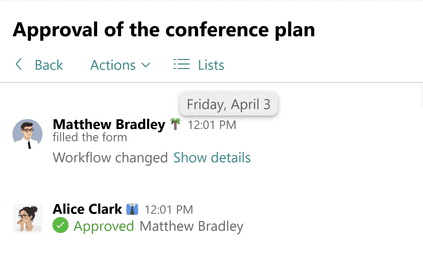
You can view the substitution history for a task in the Approvers section on the right side of the screen.
If you manually add an employee to a task while they’re away
Suppose you add an employee to a step of an existing request, while that person is away. Their deputy will perform their role in the tasks for the duration of their absence.
If you’re an Approver as part of a role
Your deputy will approve the step on your behalf as a participant of that role.
How to assign a substitute
Open your profile.
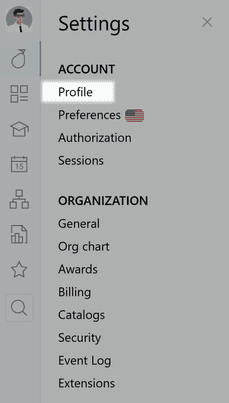
Select a Default Deputy.
Specify the substitution time period.
If needed, specify deputies by specific forms (business processes).
Click Save.
Pyrus Tips
A deputy can be assigned by the user themselves, or by another employee with Admin permissions.
You can set multiple absence time periods at once, for example, for both an upcoming business trip, and an upcoming vacation.
Important! If your deputy doesn't have access to forms you’re an Approver on, tasks from these forms will still go to their Inbox. They will not gain access to the form itself, however.
What deputies don’t do
If you’re added to a task as a Subscriber while you’re away, your substitute will not receive those tasks. Subscribers are not subject to substitution.
The end of the substitution
Once your set absence period ends, the substitution will end automatically. You don’t need to remove it from your profile.
You’ll have access to all tasks received by your deputy while you were away.
If a substitution has ended, or has been deleted, your deputy can no longer perform functions on your behalf. The next time there is a change in a task, they’ll automatically be removed from the workflow.
Please note: your deputy will still have access to the tasks they performed on your behalf, even after you return to work.