AI bots in Pyrus
Artificial intelligence bots (AI bots) are virtual Pyrus users. They help managers and system admins optimize their company’s business processes more effectively. AI bots can help with a variety of tasks:
- preparing concise and accurate responses to customers based on existing company materials (such as FAQs);
- translating customer inquiries from different languages;
- evaluating employee performance in accordance with the organization’s established standards.
AI bots are powered by language models and operate on written instructions, carrying out user requests (prompts) formulated in natural language and free-form text. Like any bots, they can be assigned as Subscribers and Approvers at stages in tasks and forms.
An AI bot can perform actions not only in the current task, but in any other task it has access to. Specify what you need the bot to do, and in which task, in the prompt in the AI bot profile. For example, you could point the bot to a related task by providing its task number, or including a link to it.
Tip: In Pyrus, AI bots work with text prompts. A prompt is a request, command, or instruction that a user gives to AI to perform a task.
AI bots can help improve:
- ServiceDesk — customer support and service operations;
- CRM — customer interaction;
- HRM — employee recruitment, onboarding, and training;
- LMS — knowledge management, including adding to and updating corporate knowledge bases with instructions, tips, and guides for using the product and working with customers, developed and collected by your company’s employees.
How to create an AI bot
Important! To create an AI bot in your organization, you need Configuration Manager rights.
Go to your organization’s Settings and open the Bots section.
Click Add bot.
Select the AI bot type, enter a name, and click Add.
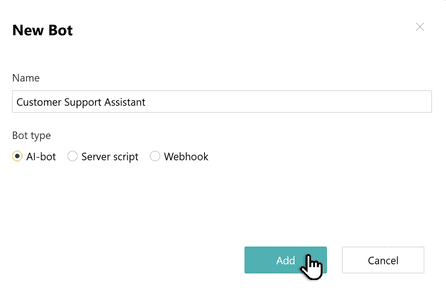
Tip: If the AI bot option is not available, see the article How to start using AI in Pyrus.
Add Bot administrators: users who can change the settings in the AI bot profile.
Write the prompt, instructing the bot what you want it to do, in the bot profile. If necessary, fill in other fields too.
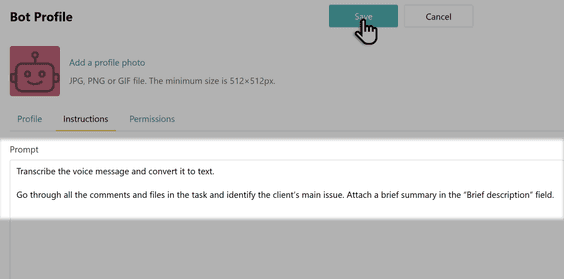
Go to the form where you want to use the AI bot and add it to the workflow.
Learn more about request workflow in Pyrus
Tip: If you want the bot to have access to data from other tasks, forms, articles, or sections of the Knowledge Base, configure the appropriate AI bot access rights.
If the AI bot needs to perform broad actions involving organization data, configure its access rights for the organization’s Settings.
Important! Only users with Administrator and Organization Manager organization rights can configure additional access rights. For the Organization Manager, the Can edit users account privileges and organization info option must also be enabled in the rights settings.
Tip: You can disable AI functionality in the settings of a specific form. AI bots will not search for or analyze information in tasks created using those forms. The disabling of AI functionality for that form will be reflected in the bot’s event log.
We recommend:
- assigning the bot to a separate stage in the form’s workflow;
- if the bot needs to execute a complex prompt with many conditions, it is better to split it into several prompts and create multiple bots for them, assigning them sequentially to the approval stages of the request;
- checking which forms and tasks the bot has access to. It can work only with objects to which it has been granted access.
What an AI bot can do
The AI bot will add a comment to the task with specified or generated text.
Analyze all actions taken on the task. Add a comment
describing the current status of the task,
the main steps taken, and the proposed solution.
The AI bot will fill in the request fields with relevant values: for example, it can specify the request priority, its type, the issue reported by the customer, and the phone number they are calling from.
Fill in the Topic field according to the user’s issue.
Note: The AI bot can change the values of Text, Catalog, Choice, Number, Money, Date, Time, Deadline, Deadline with Period, Checkbox, Contact, Email, Table, and Phone type fields.
The AI bot will extract information from text documents.
Extract the name of the customer’s organization
from the last attached document
and enter it in the Buyer field.
Note: The AI bot can recognize text files in DOC, DOCX, ODT, TXT, and PDF formats.
The AI bot will prepare a text description of an image from a file attached to the task.
Upload the last file attached to the task
and analyze its contents.
Fill in the Topic field according to the customer’s query.
Note: The AI bot can recognize images in the following formats: APNG, AVIF, BMP, GIF, JPEG, PNG, SVG, TIFF, WebP, and HEIC.
The AI bot will convert an audio track into text and analyze its content.
Analyze the latest audio recording attached to the task
and fill in the Topic field according to the user’s query.
Note: The AI bot can recognize audio files in WAV, MP3, OGG, and OGA formats.
The AI bot will translate text into a specified language.
Translate all of the customer’s messages into Russian
and combine them into one coherent text.
Post the result in a comment in the task.
The AI bot will find tasks that match the user’s request and to which it has access, and extract the required information from them.
Find the latest invoice issued to Skyrus Ltd.
and enter the amount specified on it in the Total field.
The AI bot will copy information from other tasks into the current task.
Pull the contract amount from the related task
and enter it in the Amount to Pay field of the current task.
The AI bot will provide search results for information in your organization’s Knowledge Base across the entire collection of materials, a specific section, or a specific article or articles.
Find the answer to the user’s question
in the Knowledge Base, in the section
https://pyrus.com/t#kb/topic/topic-AAAAAA.
If you find relevant information, write the answer
to the user’s question in a comment in the task.
Include a link to the article you found in the comment.
The bot can add an Approver or Subscriber to a task at a specific approval stage.
Add the user https://pyrus.com/t#pp12345 as an Approver
at the Processing step of the task.
Tip: For the bot to add an Approver or Subscriber to a task, the prompt must specify the ID of the user to be added, or a link to their profile.
The AI bot will send file(s) attached to the task to an external channel.
Send the last attached file to an external channel.
Please note: Files cannot be sent to all existing external channels. For more information about the available file-sending options, see the Integrations section.
The AI bot will change the task status, which is especially useful in ServiceDesk and CRM business processes.
Fill in the Status field with the value
“Under client review.”
The AI bot will create a related task, either a regular task or a form-based one.
Create a task using the Tech Support form.
Fill in the Topic of the created task
with the text of the user’s inquiry.
Mark the task as read.
Tip: Make sure the bot has the required access rights for the specified form.
The AI bot will approve the task, reject it, mark it as read, or remain in the task.
Review the last document attached to the task.
Reject the task if the deal total in the document
does not match the deal total in the task.
Tip: The Remain in the task option calls the bot to the task whenever a new comment is added.
Learn more about workflow steps in Pyrus
The AI bot will close a task if you include this action in its instructions.
Compile a summary of the task, post it in the appropriate
form field, then close the task.
Advanced AI bot settings
Delayed execution
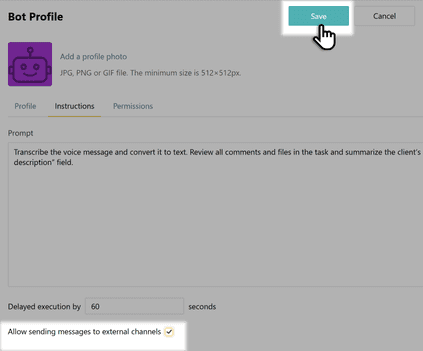
This setting prevents the AI bot from responding to every customer message. Instead, it collects all customer messages received during the waiting period into a single set of data and generates one combined response.
The waiting period (N seconds) begins as soon as the first comment appears in the task.
When a new comment is added to the task, the waiting period is extended by N seconds.
All comments received during the waiting period are added to the first comment, forming a single set of data for processing.
Once the waiting period expires, the AI bot generates a single response to all the comments received.
Important: If new comments are added to the task after the AI bot has already started processing the first set, the AI bot will analyze them after it finishes processing the first set of comments.
To enable this setting:
go to the AI bot profile and click Edit;
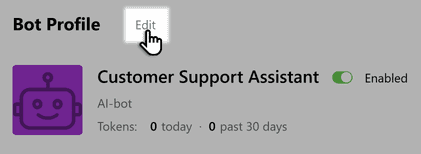
open the Instructions tab, set the required waiting time (in seconds), and click Save.
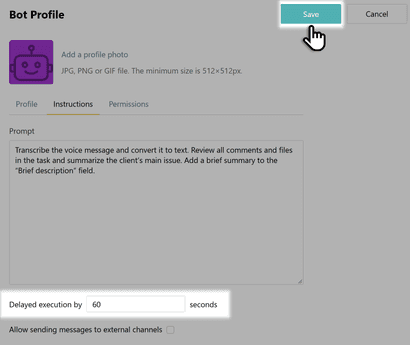
Sending messages to an external channel
This setting allows the AI bot to send a message directly to an external channel integrated with Pyrus.
For the AI bot to send messages, you must clearly specify in the prompt that it should perform this action.
Send the following message to the external channel:
"Hello! We’ve received your request
and will contact you shortly."
Mark the task as read.
Attention! The AI bot can use any information available to it based on the access rights granted to it. Be sure to specify in the prompt exactly which data it may use when preparing a response to the user.
To enable this setting, open the AI bot profile and click the Instructions tab. Check Allow sending messages to external channels and click Save.
Bot action history
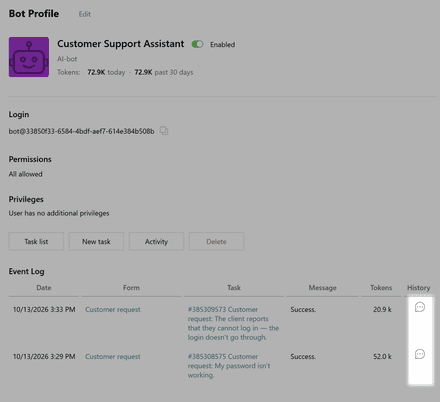
You can view all actions performed by the AI bot in the Event log in the bot profile. To view the bot’s action history for a specific date, click the chat icon in the History column of the row with that date.
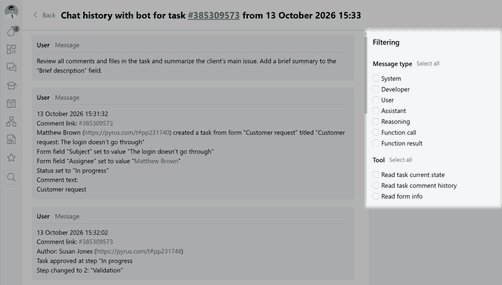
You can filter the events you need by keywords like message type or tool.
Cost of using AI bots
AI bots are full-fledged users of the system. The pricing terms for a bot account are the same as for regular employee accounts.
AI bots are available only to organizations on a paid Pyrus plan.
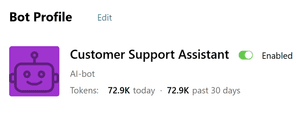
Note: Each AI bot profile has a separate counter showing how many tokens it has used today and over the past 30 days. This information is available to users with Administrator and Configuration Manager rights in their organization, and to bot administrators.
Learn more about the limits and cost of using AI in Pyrus
Next step: if you want to explore examples of integrating AI bots into existing business processes, read AI use cases in business processes.