AI assistant
The Pyrus AI assistant is a virtual helper designed for every user of the system who has a paid subscription. Using artificial intelligence, it helps solve a wide range of work-related issues with a single click:
- find the information you need in a task;
- suggest the right courses of action;
- prepare responses and proposals for customers;
- check documents;
- keep track of deadlines;
- evaluate a candidate’s resume against the requirements of a job opening, and more.
The AI assistant is powered by language models. It accepts questions formulated in natural language and free-form text and generates clear, structured responses in a respectful tone.
The AI assistant is available on any Pyrus page, can navigate from page to page, and can also perform actions in tasks that are not currently open on the screen but that it has access to.
How to start using the Pyrus AI assistant
Make sure AI functionality is enabled in your organization.
How to start using AI in Pyrus
To open the AI assistant on any Pyrus page, just click the pear icon in the bottom-right corner.
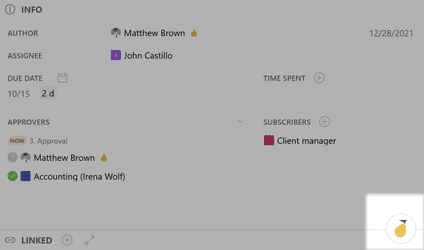
Tip: We recommend using the AI assistant in the Script section of Pyrus forms to write scripts.
Let’s look at an example. Open any task from your Inbox, click the pear icon in the bottom-right corner, and ask a question.
The AI assistant’s answer to your question will appear below in the open dialog box.
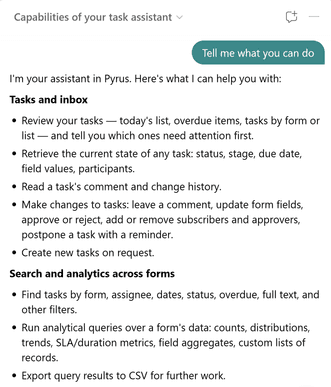
Tip: To completely refresh or reset your conversation with the AI assistant, click the New chat icon in the top bar of the dialog box. 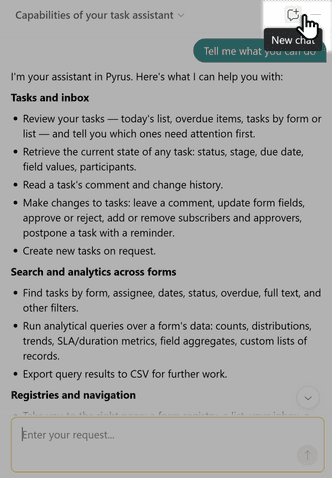
What data in Pyrus is available to the AI assistant
Your AI assistant has access only to the tasks, forms, articles, and topics that you have access to. For example, to get information from a task, you only need to have Participant or Subscriber rights for that task; to get information from the Knowledge Base, you need Read access to the article or topic.
Learn more about access levels for forms Learn more about user rights in the Knowledge Base
You can also disable AI in the settings of a specific form if necessary. The AI assistant will not search for or analyze information in tasks created using those forms.
Learn more about security settings
What the AI assistant can do
Autonomous actions — performed immediately upon request from you.
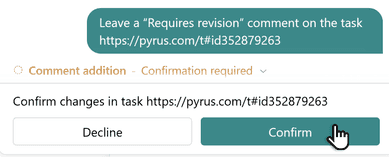
Actions requiring confirmation — first you authorize the action, then the AI assistant performs it.
Autonomous actions
The AI assistant will provide a list of all its functions.
Tell me what you can do.
The AI assistant will analyze the content of text documents.
What is the contract total in the last document?
Note: The AI assistant can recognize text files in DOC, DOCX, ODT, TXT, and PDF formats.
The AI assistant will prepare a text description of an image from a file attached to the task.
Analyze the content of the last file attached to the task.
Note: The AI assistant can recognize images in APNG, AVIF, BMP, GIF, JPEG, PNG, SVG, TIFF, WebP, and HEIC formats.
The AI assistant will convert an audio track into text and analyze its content.
What next steps were coordinated with the client
during the call?
Note: The AI assistant can recognize audio files in WAV, MP3, OGG, and OGA formats.
The AI assistant will translate the text into a specified language.
Translate the last comment into Russian.
The AI assistant will find relevant tasks based on their content.
Have we ever invoiced Skyrus Ltd. before?
Tip: When searching by context, the AI assistant will set filters in the Register and display the selected tasks there.
The AI assistant will find relevant articles in the Knowledge Base based on their content.
What are the company’s overall client service policies?
The AI assistant will find information in Pyrus Help and provide a step-by-step solution to the issue.
How do I sync with Google Calendar?
The AI assistant will analyze the content of the task, article, or Knowledge Base section and provide accurate answers based exclusively on the information obtained through the analysis.
Create a list of existing agreements with the client.
The AI assistant will prepare a concise and informative summary of any task, article, or Knowledge Base section.
Compile a summary of the current task.
The AI assistant will provide information about departments, managers, and employees based on the company’s organizational structure.
Who is the head of Marketing?
The AI assistant will set a task reminder for a specified date and time.
Remind me about this task tomorrow at 2 pm.
Next step: if you want to learn how AI can be used to automate existing business processes, explore the capabilities described in the article on AI bots.
For examples of how existing AI tools can be used, we recommend reading AI use cases in business processes.
Actions requiring confirmation
The AI assistant will write a comment, either based on your template or one it generates itself.
Analyze all actions taken in the task. Leave a comment
describing the task’s current status, propose a solution,
and list the main steps to be taken.
The AI assistant will enter the priority, customer’s issue, or other information in the appropriate fields.
Fill in the Topic field according to the client’s issue.
Useful for ServiceDesk and CRM processes.
Fill in the Status field with the value
“Under client review.”
The AI assistant will create a related task (a regular task or a form-based task).
Create a task from the Tech Support form.
Fill in the Topic of the created task
with the text of the client’s query.
Mark the task as read.
Important: Make sure the bot has the required access rights for the specified form.
The AI assistant will add a Subscriber or Approver to the specified step.
Add the user https://pyrus.com/t#pp12345 as an Approver
to the task’s Processing step.
Important: In the prompt, you need to specify the user ID or a link to their profile.
For more information about access rights, read working with forms.
The AI assistant will send file(s) from a task to an email address, messenger, or social network.
Send the last file attached to the task
to an external channel.
Please note: Files cannot be sent to all channels. For more information about sending files to different channels, see the section on extensions.
The AI assistant will determine the time spent on a task or step and record it wherever you specify (in a comment or field).
Determine how much time was spent doing this task,
and log that value in a comment in the task.
The AI assistant can approve a task, reject it, or mark it as read.
Reference the last document attached.
Reject the task if the deal total in the document
does not match the deal total in the task.
The AI assistant will close one or more tasks as instructed.
Find all tasks created from the Tech Support Queries form
that have been approved by the tasks’ Authors,
and close them.
Next step: to learn how AI can be used to automate existing business processes, explore the article on AI bots.
For examples of how existing AI tools can be used, read the article AI use cases in business processes.