Features and advantages of Custom Reports
Any company has processes that are unique to its operational activities and critical to its strategic development. Standard business metrics often do not reflect the specifics of these internal processes.
Custom reports are a tool specifically designed to analyze a company’s unique performance indicators. They allow business users to achieve a deeper understanding of their company's processes by analyzing both the current state of tasks and the complete history of actions within them.
Who benefits from custom reports
This functionality is intended for specialists who work with data and need personalized analytics, but do not possess the full range of programming tools.
Business analysts: for analyzing process efficiency in-depth and identifying bottlenecks.
Department heads (marketing, service, sales, etc.): for monitoring unique performance indicators.
Experienced users/system admins: for creating reports without getting the IT department involved.
Key advantages
Flexibility: ability to create reports based on the company’s unique business metrics that are not available in standard dashboards.
Performance: the engine is based on the columnar DBMS ClickHouse, guaranteeing high processing speed even for the most complex analytical queries working with large volumes of historical data.
Accessibility: reports are created using a SQL-like language. This makes the tool accessible to a wide range of business users and does not require deep programming knowledge.
How reports are displayed
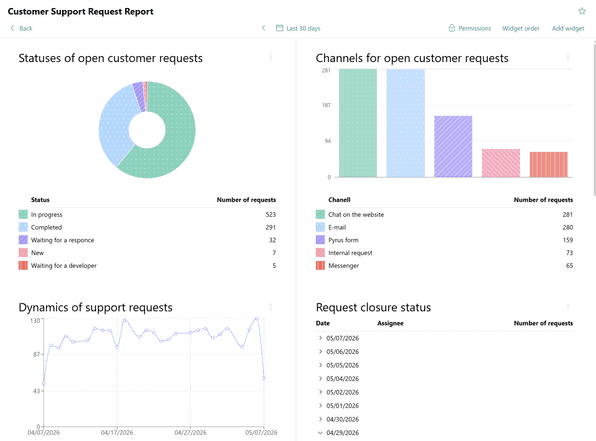
Personalized reports reflect events selected by the user within a specific form in different ways. You have access to:
- tables;
- pie charts;
- bar charts;
- time series.
How to start working with reports: required steps
Define the analytical need once, write an SQL query, and get a ready-to-use, permanent, interactive widget.
| Step | User action |
|---|---|
| I. Concept creation | Define the business metrics to track and the format in which they will be displayed in the widget (table, pie chart, bar chart, time series). |
| II. Query development | Go to the report editor and write an SQL query using the syntax guide and data formatting and filtering tools. |
| III. Visualization | Configure the data visualization in the widget according to the chosen display format of the widget (see step 1). |
| IV. Publication and access settings | Set the widget location and access rights to the report (for the Reports section). |
What’s next?
Determine which forms and data from them you want to use to create a custom report.
- If you want to create a custom report that will be available to all users with access to the form, add it in the Dashboard section.
- If you want to create your own set of dashboards based on the forms you need, and give access to them only to selected colleagues, use the Reports section’s functionality.
You can read a detailed description of the types of charts available and the data in them in the article Data types for building widgets.
A technical guide on data structure is available in the article SQL engine and data schema.