Reports from multiple forms in one space
In one Report, you can collect widgets from several forms, while each individual widget is created based on the data of only one form.
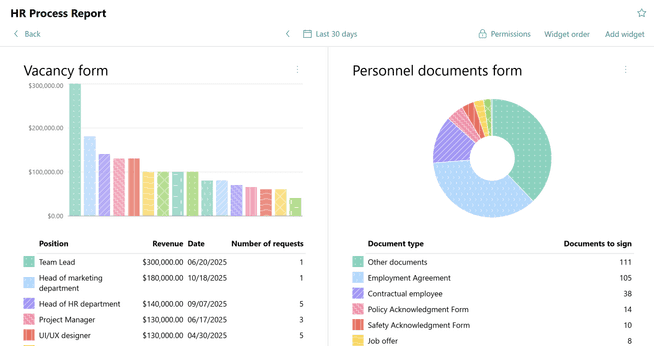
Important: data on the charts is displayed according to your access rights to the forms. If you do not have permission to view certain forms or tasks, they will not be included in the Report, even if they are specified in the SQL query.
Creating the Report
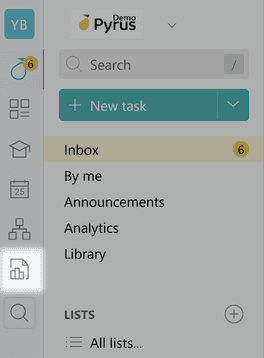
Go to the Reports section in the left menu and click Create report.
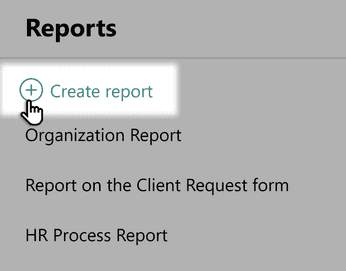
Enter the report name and click Create.


Adding a widget to the Report
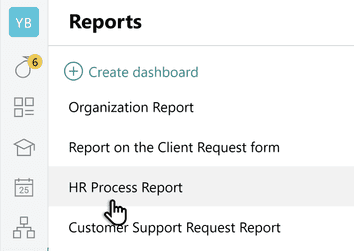
Open the desired Report in the corresponding section.
Click Add widget in the top panel.
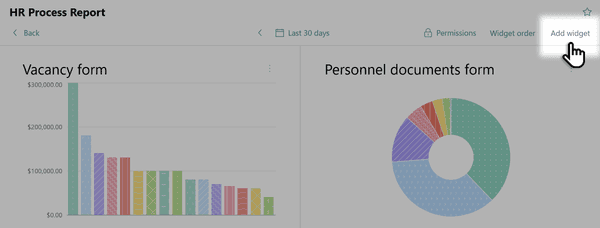
Select the form for which you want to build the widget.

The report editor opens.
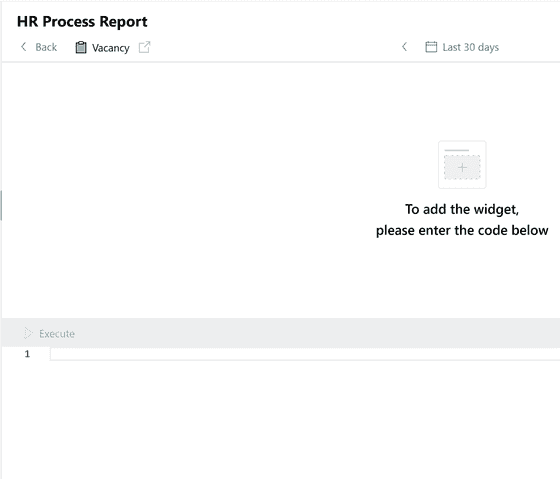
At the bottom of the window, enter the SQL query written in ClickHouse dialect, including aliases and parameters, and click Execute.
If you have prepared a dataset that meets the requirements of the desired display type (for example, the Number type and Date type), the chart type can be changed.
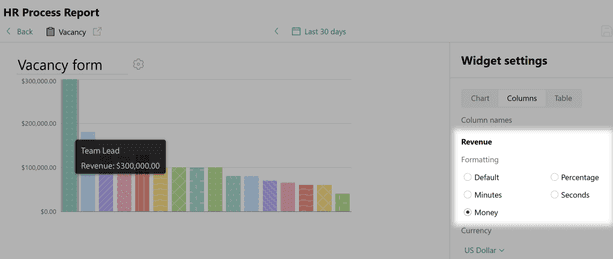
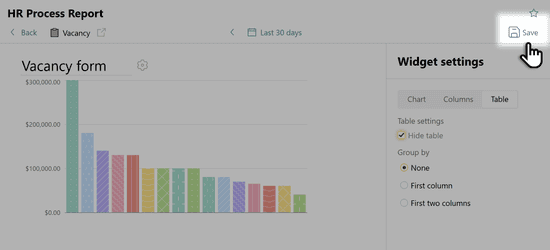
In the widget settings, specify the desired data format displayed on the chart axes. This can be done for data types: Number, Date, and Time.
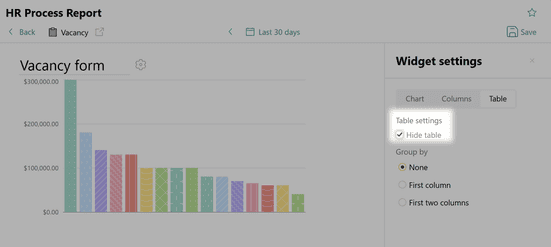
Hide or keep the data table active. If necessary, use grouping of table data by the first column.
Save the created widget in your Report.

More about how to create and configure a widget
Managing the Report
Editing the Report
- Open the Report.
- Enter changes into the desired widget and hit Save.
Setting the order of widgets
Open the Report and click Widget order in the top panel.
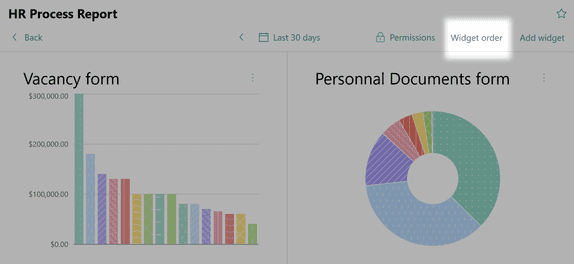
Move widgets using drag-and-drop between the left and right columns, and also hide columns.
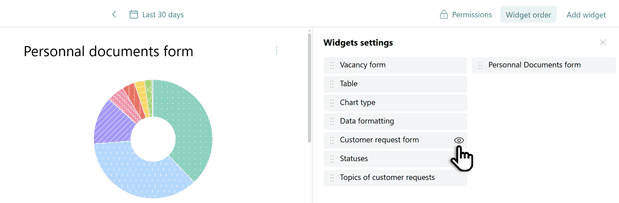
Pyrus Tip: all changes to the order of widgets are saved and applied for display to all users who have access to this report.
Configuring access rights
Managing access to reports allows employees (for example, managers) to create widgets for monitoring business processes, making them viewable only to selected colleagues or to no one.
Note:
- access rights are set at the Report level, not for individual widgets within it;
- if No Access mode is set in the settings, even users who have access to the form will not see the report;
- access rights to reports can be set by their authors, as well as employees with editor rights.
To configure access rights, follow these steps.
Go to the Reports section in the left menu and open the desired Report.
In the top panel, open the Permissions settings.
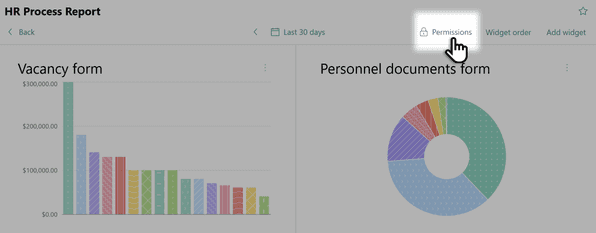
Set the desired access levels and click Save.
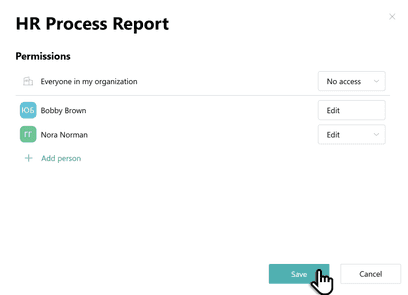
| Access level | User’s rights |
|---|---|
| Edit | The user can view, change the settings of existing widgets, and create new widgets in this Dashboard. |
| Read | The user can view all widgets in the Report but cannot change their appearance, SQL query, or order. |
| No access | The report is completely unavailable to users. |
What’s next?
Detailed available types of charts and the data in them are provided in the Overview of Display Types section.
Detailed available types of charts and the data in them are provided in the Data types for building widgets section.
Read more about the data structure and implementation features here.